Managing wireless connections on your IoT device, headless
Managing wireless connections on your IoT device, headless
Background :
Here is quick overview of my setup. So incase if you too are going in for the similar one, you know your job is not that daunting. Having said that if you have a distinct setup - the central idea still remains the same (Im assuming you are using Linux on your device).
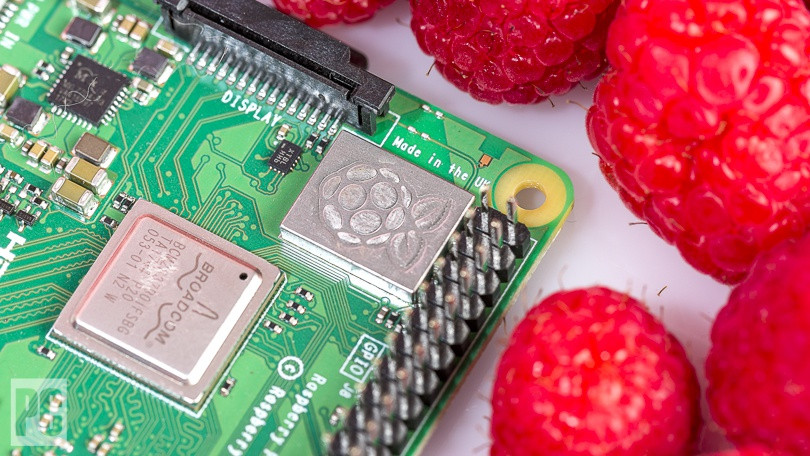
- Raspberry Pi 3B : Since the beginning of my journey I have been a huge fan of this single board machine
- Raspbian Jessi Lite 32 bit OS _Lightweight , easy to install. Has its downside being a 32 bit system on a 64 bit machine, but we are ok here.
- Runs on headless mode Ah ! the sluggish GUIs
- WiFi password changes or has to selectively connect to a new network incase the primary internet gateway (Home WiFi) is down
Without internet you have just a device that automates. Rest all is Internet of things.
Reading that with a bit of cynical mind reveals, IoT without internet is yet another device. It further raises a question as to what would you need to do incase the user (neither the developer, nor the creator) needs to re-align his/her device to a new WiFi or the same WiFi with a new password ?
When the device cannot connect to any WiFi networks around it, can do mission critical stuff on the local database, reconfiguring the WiFi then needs user intervention.
Here are a few of ways you can sort this out
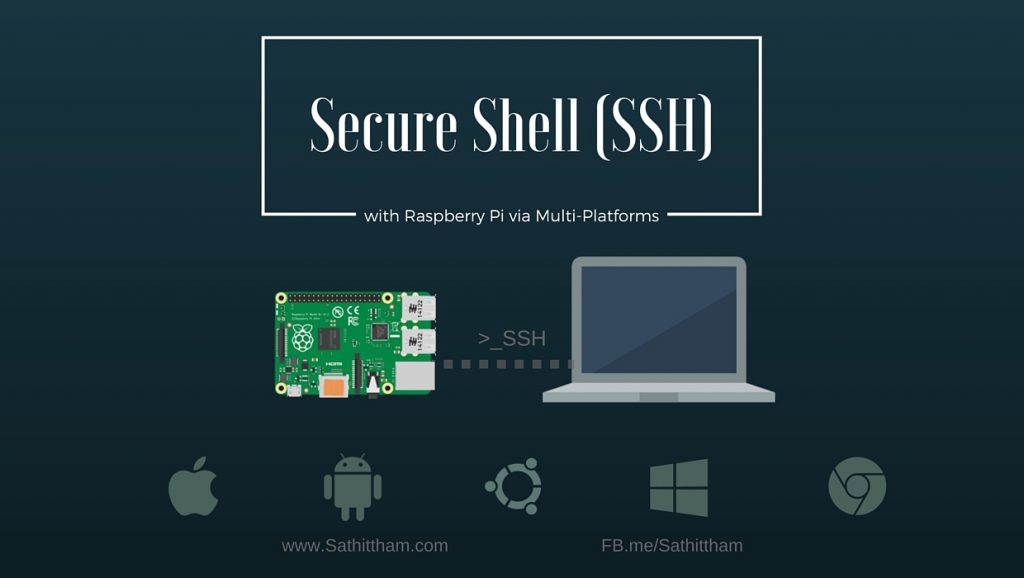
- Connect the device to the nearest WiFi using LAN and then SSH into it. While this is a possibility , it is reserved for the technical few.
- Via a mobile app you can (bluetooth)pair your handheld to the device and then open up APIs that can configure the wifi inturn. While this is the most common one, you would need to build apps for android & iOS and even Windows maybe. The effort to build and push changes is not worth the small task that the app is expected to perform.
- Device runs a WiFi access point (WAP) and lets the handheld to get into the network. A web service on the device then can accept commands. Here you stay on the browser (platform agnostic) and there is no question of pushing changes.
I for, my setup am using a WAP incase there are no WiFi(s) that the device can connect to. How nmcli helps us is something that we arrive at in the consecutive sections.
Headless Raspberry and the struggle with WiFi :
What you need your device to do with WiFi choices :
When you have a device running, you need it to do the following things w.r.t to WiFi connections :
- Browsing network connections nearby
- Saving connections with credentials
- Auto connecting , connection priority
- Fallback Access point , WiFi hotspot
Wireless Access Points help to turn the device into a WiFi hotspot, over which handhelds (/even computers) can connect to access the web server (possibly HTTP) running on the device. Put it out simply when no networks are found that the device can connect to, it should then itself act as a host to a web server allowing other hand held devices to access API.
Raspberry Pi Documentation
Learn how to turn your Raspberry Pi into a Wireless Access Point (WAP) from scratch with this comprehensive official guide.
Read DocumentationThe above reference has everything to do with making a WAP from scratch, but wait till the next section nmcli indeed makes it easy to setup.
NMCLI to the rescue
Nmcli is a command line tool for managing NetworkManager and reporting network status. It allows users to create, display, edit, delete, activate, and deactivate network connections, as well as control and display network device status.
Why nmcli makes life easier
Watch this video tutorial to understand how nmcli simplifies network management on Linux systems.
Getting nmcli on your raspberry pi
sudo apt-get update
sudo apt-get install network-manager
# this shall install a number of packages as well
NetworkManager does not manage any interface defined in /etc/network/interfaces by default. The easiest way to manage some interfaces using NetworkManager is to comment them out.
sudo nano /etc/network/interfaces
comment out the ineterfaces as so...
auto lo
iface lo inet loopback

# Managed by NetworkManager
#iface eth0 inet manual

# Managed by NetworkManager
#auto wlan0
#allow-hotplug wlan0
#iface wlan0 inet dhcp
#    wpa-conf /etc/wpa_supplicant/wpa_supplicant.conf
Now go ahead to inspect this file and find the details as below
sudo nano /etc/NetworkManager/NetworkManager.conf
[main]
plugins=ifupdown,keyfile

[ifupdown]
managed=false
This informs the network manager to only manage the interfaces not enlisted in the /etc/network/interfaces file.
Give your device a quick restart
nmcli dev status
DEVICE           TYPE      STATE      CONNECTION
enxb827eb9d3108  ethernet  connected  Wired connection 1
wlan0            wifi      connected  <SSID of Wifi> / ---
lo               loopback  unmanaged  --
nmcli dev wifi
SSID              MODE   CHAN  RATE       SIGNAL  BARS  SECURITY
*  UdanKhatola       Infra  1     54 Mbit/s  84      ▂▄▆█  WPA1 WPA2
   Tvesha            Infra  2     54 Mbit/s  65      ▂▄▆_  WPA2
   Arnav             Infra  2     54 Mbit/s  45      ▂▄__  WPA1 WPA2
   A18_703           Infra  10    54 Mbit/s  44      ▂▄__  WPA1
   ZTE-853bac        Infra  11    54 Mbit/s  32      ▂▄__  WPA1 WPA2
   A16_704_2.4Ghz    Infra  9     54 Mbit/s  29      ▂___  WPA1 WPA2
   homewifi          Infra  11    54 Mbit/s  25      ▂___  WPA1 WPA2
   Moonlight 2.4GHz  Infra  9     54 Mbit/s  24      ▂___  WPA2
   Rajeev            Infra  11    54 Mbit/s  22      ▂___  WPA2
   Google-WifFi      Infra  1     54 Mbit/s  17      ▂___  WPA2
   A5-703            Infra  5     54 Mbit/s  17      ▂___  WPA1 WPA2
Above is the list of all the networks around me. It shows this list in the descending order of the strengths. The channel of the WiFi could be of some interest, since it helps to know that RPi was built in the UK and Europeans dont consider CHN 13 & 14 as valid ones. Out here in India though it is easy to find even contemporary ISPs configuring their routers for CHN 13⁄14.
I did struggle with the channel setting initially , then wisely put that to CHN1. All is working fine since then.
When you know the SSID around you can add that as a connection. This is like saving the connection detail for later quick use. Incase it uses WPA/WPA_2 security mode the below example could be useful.
sudo nmcli connection add con-name HOMEOFFICE ifname wlan0 type wifi ssid HOMEOFFICE
# creates the connection, but has not assigned a WPA /WPA2 key to it
sudo nmcli con modify HOMEOFFICE wifi-sec.key-mgmt wpa-psk
#that modifies the existing connection
sudo nmcli con modify HOMEOFFICE wifi-sec.psk PASSKEY
# this assigns a key to the network which is encrypted
Once added as a connection, check out all the connections on your device using the following command.
nmcli con show
NAME                UUID                                  TYPE             DEVICE
HOMEOFFICE          d420d540-3696-4ad8-aeff-b1c7ee5e9054  802-11-wireless  wlan0
_$_$_$_$_$_         48537b88-d5e1-3577-b523-ec4f5b051691  802-3-ethernet   enxb827eb9d3108
Saved a connection can be turned on (Analogous to connecting to saved networks), disconnect (down) the network and also forget (delete) the network. Please note all the below commands need elevated access rights.
sudo nmcli con up HOMEOFFICE
sudo nmcli con down HOMEOFFICE
sudo nmcli con delete HOMEOFFICE
Getting the details of an individual connection is just one command ahead.
nmcli con show HOMEOFFICE
connection.id:                          HOMEOFFICE
connection.uuid:                        d420d540-3696-4ad8-aeff-b1c7ee5e9054
connection.stable-id:                   --
connection.interface-name:              wlan0
connection.type:                        802-11-wireless
connection.autoconnect:                 yes
connection.autoconnect-priority:        0
connection.autoconnect-retries:         -1 (default)
connection.timestamp:                   1556523041
connection.read-only:                   no
connection.permissions:
connection.zone:                        --
connection.master:                      --
connection.slave-type:                  --
connection.autoconnect-slaves:          -1 (default)
connection.secondaries:
connection.gateway-ping-timeout:        0
....
....
# for brevity sake I have posted only a part of attribute list
Understanding connection priority :
Network manager can asses a connection’s priority and check to see if that can pulled up. If the connection is not available the manager then jumps onto the next priority connection. __Higher the connection priority number, higher in the sequence of priority it is. __ As an example : Since we want the Access point to be connected only when there are no available connections, its autoconnect priority number has to be the lowest. It is worth noting that when a connection is created the default priority is 0, hence pushing the access point priority to -1 achieves what we want.
sudo nmcli con modify SSIDOFAP connection.autoconnect-priority -1
This indicates to the network manager to attempt and pull up the AP only when all other connections (Infrastructure) fail or are unavailable.
Last word:
Having a GUI to operate on WiFi connections management is convenient, but when you need programmatic access to WiFi configs, nmcli is a adequate choice that I have come to like. I have gone ahead to program such a use case in python. Readers interested can drop me a mail and I would be happy to share my repo.
Please also see : If the WAP is up, scanning the WiFi list will not work. Assume the WAP is up then the below command would not yield any results
nmcli device wifi list
Native command as below can be then handy and useful.
sudo iwlist wlan0 scan
References :
Installing Network Manager on RPi
Complete guide for setting up Network Manager on Raspberry Pi