Taming the Turbo: A Developer's Journey from Thermal Chaos to Peaceful Silence
Taming the Turbo: A Developer’s Journey from Thermal Chaos to Peaceful Silence
Sometimes productivity starts with debugging your hardware… especially when it sounds like it’s preparing for liftoff from Pune Airport Runway 3. 😄
Introduction
For the past few weeks, my Dell Latitude 7400 running Ubuntu had one mission in life: sound louder than a rickshaw engine stuck in Swargate traffic.Every time I opened VS Code with Copilot, or kicked off a Docker build, the fans would spin like they were trying to reach escape velocity. At first I assumed I had angered the gods of thermodynamics.
Spoiler: I hadn’t. I had just angered Intel Turbo Boost.
🔧 My Setup
| Component | Details |
|---|---|
| Laptop | Dell Latitude 7400 |
| OS | Ubuntu |
| Workload | VS Code + GitHub Copilot, Docker, Go |
| Issue | Fan at full speed even during light load |
| Sound profile | Jet Engine Mode™ |
Everything would be peaceful… until VS Code indexing + Copilot + language servers kicked in. Then the temperature would rocket from 50°C to 98°C in seconds, and the fan would scream like it was trying to migrate to Mahabaleshwar.
🕵️ Diagnosis Phase
Step one: figure out whether the problem was heat or hysterical fan logic.
We installed lm_sensors:
sudo apt install lm-sensors
sudo sensors-detect
sensors
The first reading showed something surprising:
- CPU around 60°C
- Fan running full speed
- No real overheating
So the issue wasn’t thermal — it was fan control and power management behavior.
Then I opened VS Code and bam 💥:
- CPU jumped to 98°C
- Fan ramped, but too late
- Emergency throttle kicked in
The culprit?
🎩 Intel Turbo Boost + aggressive scaling governor + thin laptop chassis
🧠 The Fix
- Disable Intel Turbo Boost temporarily
echo 1 | sudo tee /sys/devices/system/cpu/intel_pstate/no_turbo
🚀 Intel Turbo Boost — what role does it play?
Turbo Boost is a feature built into Intel CPUs that allows the processor to temporarily increase its clock speed above the base frequency when more performance is needed.
How it works
- CPU sees a workload spike → instantly boosts clock speed (e.g., from 1.6GHz to 3.8GHz)
- Performance increases temporarily
- Power consumption and heat output jump sharply
- Fan kicks in aggressively to prevent overheating
- Why it becomes a problem
Turbo Boost is designed for short, bursty workloads like scrolling big spreadsheets, rendering a page, or compiling a few files.But many modern developer tools — like VS Code + Copilot + indexing engines + Docker containers — create sustained multi-core load, not short bursts.
That means:
- Turbo stays on too long
- Heat climbs rapidly
- Fan goes to jet-engine mode
- Thermal throttling kicks in, ironically making the system slower
In our case, disabling Turbo Boost:
- Prevented instant temperature spikes to 98°C
- Allowed gradual heat buildup
- Made the fan behave normally
- Improved sustained performance and comfort
💡 It’s like driving in the city: you don’t need full NOS boost just to go between traffic signals.
- Switch CPU governor to powersave
sudo cpupower frequency-set -g powersave
CPU Frequency Governor — what it controls
The CPU governor is a Linux kernel mechanism that decides how aggressively the CPU changes clock speed based on load.
Think of it as a driving style:
| Governor | Behaviour | Good for |
|---|---|---|
| performance | Runs CPU at highest frequency always | Heavy builds & benchmarking |
| powersave | Keeps CPU at low frequency unless needed | Coding, browsing, writing |
| ondemand / schedutil | Jumps up quickly during load | Balanced desktop use |
| conservative | Ramps up slowly | Power saving & fan quietness |
What powersave actually does
Despite the name, powersave doesn’t make your machine slow.
It simply:
- Runs CPU at lower baseline frequency
- Increases speed only when real work begins
- Avoids violent spikes that cause overheating
So instead of:
0% load → 98°C instantly → jet engine fan panic
You get:
0% load → 60°C gradually → quiet fan response
In our case
Switching to powersave:
- Flattened temperature swings
- Reduced sudden fan bursts
- Made everything feel smoother and quieter
⚙️ Think of it as using cruise control instead of flooring the accelerator.
- Tune fan control with i8kmon
- We set a quieter custom curve so the fan ramped smoothly instead of panic-screaming.
- Created a super-handy one-click tray app
- So switching modes became fun instead of terminal-gymnastics.
#!/usr/bin/env python3
import subprocess
import gi
gi.require_version('Gtk', '3.0')
gi.require_version('AyatanaAppIndicator3', '0.1')
from gi.repository import Gtk, AyatanaAppIndicator3

APPINDICATOR_ID = "cpu_mode_toggle"

def set_quiet_mode(_):
    subprocess.call("echo 1 | sudo tee /sys/devices/system/cpu/intel_pstate/no_turbo", shell=True)
    subprocess.call("sudo cpupower frequency-set -g powersave", shell=True)

def set_balanced_mode(_):
    subprocess.call("echo 0 | sudo tee /sys/devices/system/cpu/intel_pstate/no_turbo", shell=True)
    subprocess.call("sudo cpupower frequency-set -g schedutil", shell=True)

def set_performance_mode(_):
    subprocess.call("echo 0 | sudo tee /sys/devices/system/cpu/intel_pstate/no_turbo", shell=True)
    subprocess.call("sudo cpupower frequency-set -g performance", shell=True)

def quit_app(_):
    Gtk.main_quit()

def main():
    indicator = AyatanaAppIndicator3.Indicator.new(
        APPINDICATOR_ID,
        "computer",
        AyatanaAppIndicator3.IndicatorCategory.SYSTEM_SERVICES)
    indicator.set_status(AyatanaAppIndicator3.IndicatorStatus.ACTIVE)

    menu = Gtk.Menu()
    for label, func in [("🟢 Quiet Mode", set_quiet_mode),("🟡 Balanced Mode", set_balanced_mode),("🔴 Performance Mode", set_performance_mode)]:
        item = Gtk.MenuItem(label=label)
        item.connect("activate", func)
        menu.append(item)

    quit_item = Gtk.MenuItem(label="Exit")
    quit_item.connect("activate", quit_app)
    menu.append(quit_item)

    menu.show_all()
    indicator.set_menu(menu)
    Gtk.main()

if __name__ == "__main__":
    main()
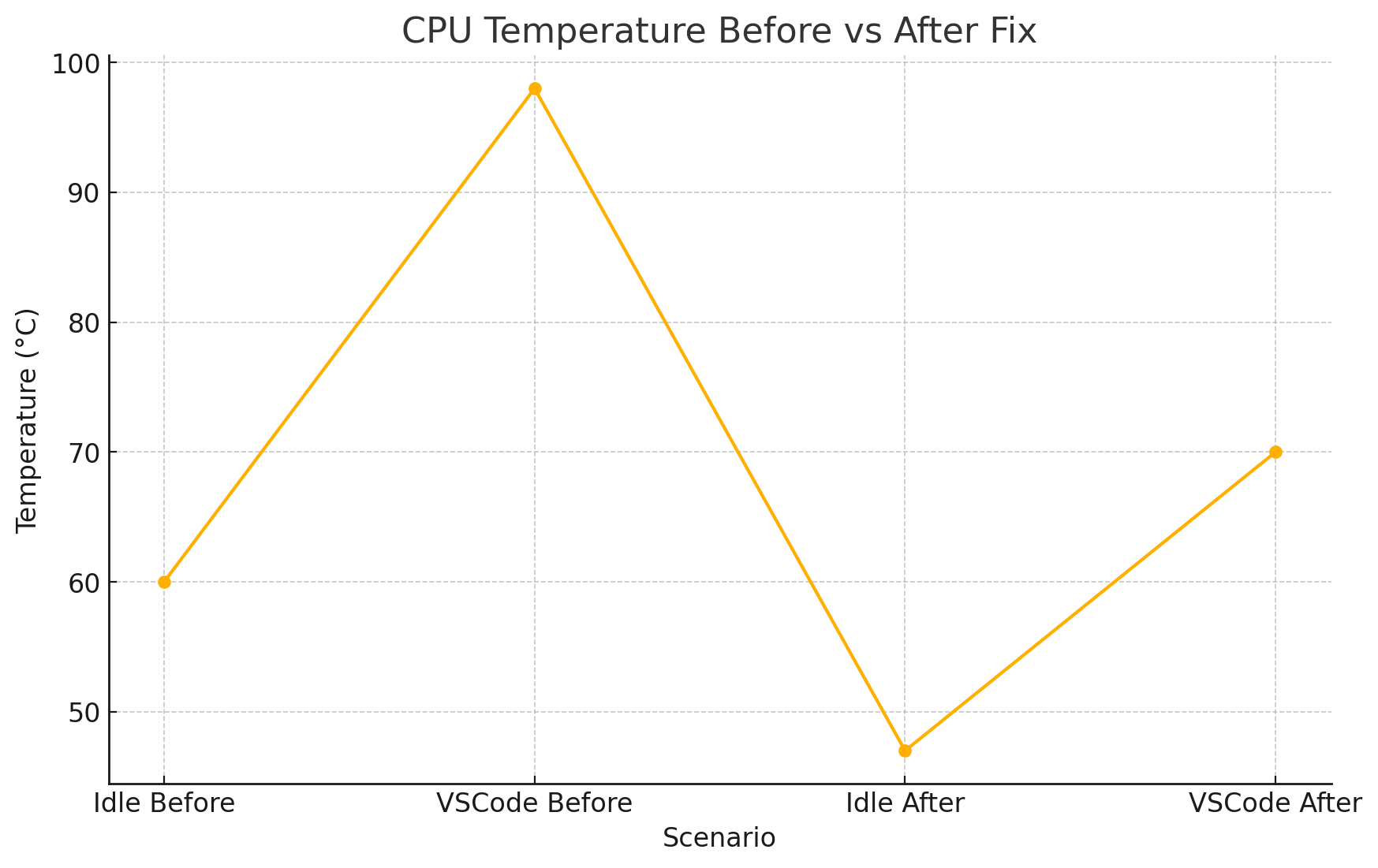
🧊 CPU Temperature Before vs After Fix
Before tuning, launching VS Code with GitHub Copilot caused the CPU temperature to spike instantly from around 60 °C to nearly 98 °C — pushing the system into emergency thermal throttling. This triggered the fan to hit maximum speed and produced the infamous jet-engine sound.
After applying the fixes (disabling Turbo Boost, switching to the powersave governor, and tuning the fan curve), the same workload now stabilizes around 70 °C. Idle temperatures dropped dramatically as well, from ~60 °C to ~47 °C.
Why it matters:
By controlling power delivery instead of forcing maximum performance constantly, the laptop now runs cooler, faster (ironically), and much quieter — without compromising real-world development productivity.
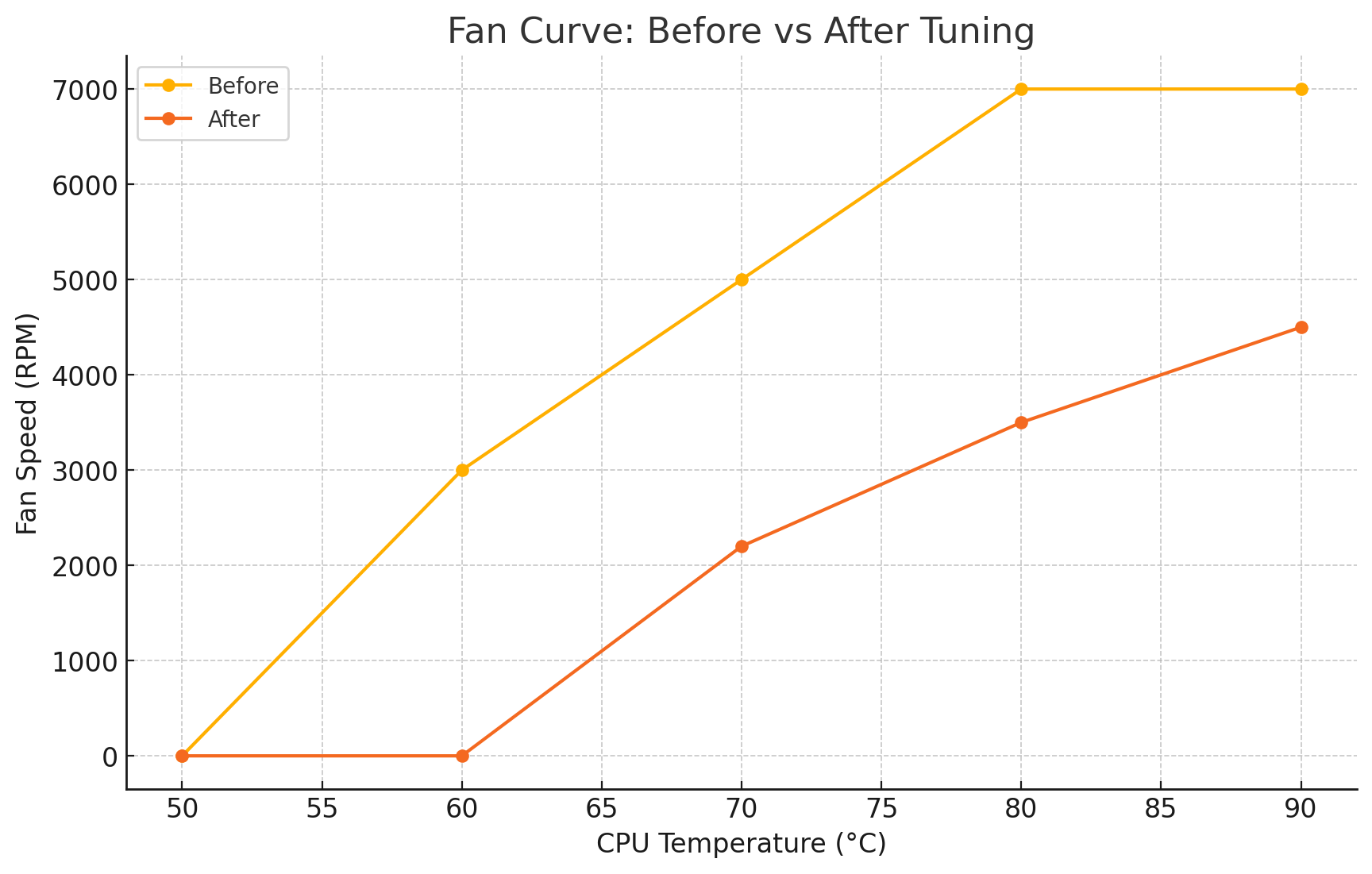
🌀 Fan Curve: Before vs After
The original fan behavior was extremely aggressive — ramping to 3000+ RPM at ~60 °C and hitting 7000 RPM shortly after. This meant the fan was constantly reacting in panic mode instead of working smoothly and predictably.
After applying a custom i8kmon fan curve, the system waits longer before spinning up and increases speed gradually. Now the fan only reaches moderate speeds under real load and stays completely silent during regular work.
Why it matters: A smoother fan curve means-
- No sudden loud whooshes
- Less thermal cycling
- More stable CPU performance
- A far more pleasant developer experience
🪓 The drama twist
When I set the script to auto-run on login, the BIOS got offended and threw a warning:
Critical Error: Processor fan failed to respond correctly
Reality: fan was fine — BIOS just didn’t like software fan controls
before it finished its self-check.touching
Solution: add a small sleep 15 before autoloading.
🎉 The Result
- Idle temps dropped from 65–70°C → 45–50°C
- VS Code load temps stabilized without jet engine noise
- Fan curves became gentle and predictable
- I got a tray toggle system that feels like having performance
| Before | After |
|---|---|
| Laptop shouting | Laptop meditating |
| 98°C spikes | Smooth 70°C max |
| Fan screaming | Low whoosh |
| Panic | Peace |
🧘 Final Thought
Sometimes the best productivity upgrade isn’t more RAM or a faster SSD — it’s quieting the machine already on your desk.
💬 Call to Action
If your Ubuntu laptop sounds like it’s about to take off — maybe it’s time to check your governor and turbo instead of ordering new hardware.
Happy to help if anyone wants scripts or templates!